GYM CALENDAR
One simple calendar for every class you run.
GYM CALENDAR
One simple calendar for every class you run.
Run your class calendar with confidence. Our fitness software gives you the tools to build a class schedule and keep it running without fuss. Add classes, appointments, and events. Whether you run a class based gym or book time with service pros like personal trainers or massage therapists, the calendar fits how you work.
Creating Classes & Appointments For Your Calendar
Start by creating your classes and appointments. Give each one a name, a description, and any class limits, then add them to the calendar. Appointments for personal trainers or other third party providers work the same way. Once that is done, students and staff can use the calendar.
Class Calendar Features For Students
Calendar Display Options
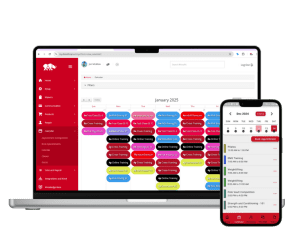
Display the calendar by month, week, or day. You also have the option to scroll through day by day, or jump right to today's date.
Color Coded Classes
When setting up the classes, you have the option to set a color for each class. This makes it easy for users to find them.
Class Times
In addition to color coding classes, the class time is also displayed in case the class is offered several times during the day.
Attendance Count
RhinoFit displays the current number of people signed up for the class. Pick which class size works best for you.
Reservations
Students may reserve their class space. Adding their name to the reservation list guarantees their space in that class before it reached capacity.
Wait List
Students have the option to add their name to a wait list. In the event of a cancellation, the first wait list name is elevated to a reservation.
Staff Members Using The Class Calendar
Staff can run the calendar without a manual. Click any class on the calendar and a window opens with your options: edit the class, delete it, assign an instructor, or add a workout of the day.
You can also add members to the wait list, book a reservation for a member over the phone, add a drop-in, edit the reservation or wait list, and mark members as attended.
Manage Attendance
After the class is complete, the instructor has the ability to move all students from the reservation list to the attended list with one mouse click.
Remove Students
Remove students form either the wait or reservation list upon a cancellation. A member on the wait list will then be moved to reserved.
Add A Drop-In
Some gyms don't require a membership to attend a class. Referred to as drop-ins, they may be added to the reserved list and charge a drop-in fee.
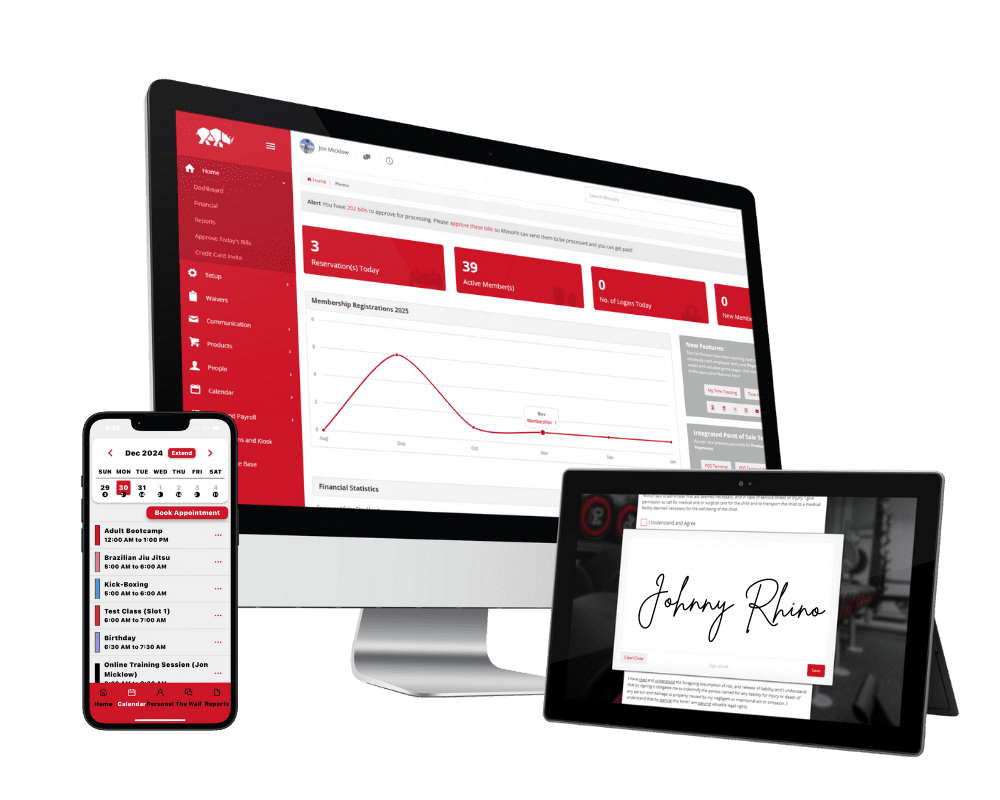
Our Gym Management Software Runs On Any Device
Use it on your computer, phone, or tablet – run your gym wherever you are. Your members can schedule and pay online too.